Adding Text Overlays
Add and style text overlays on your video ads.
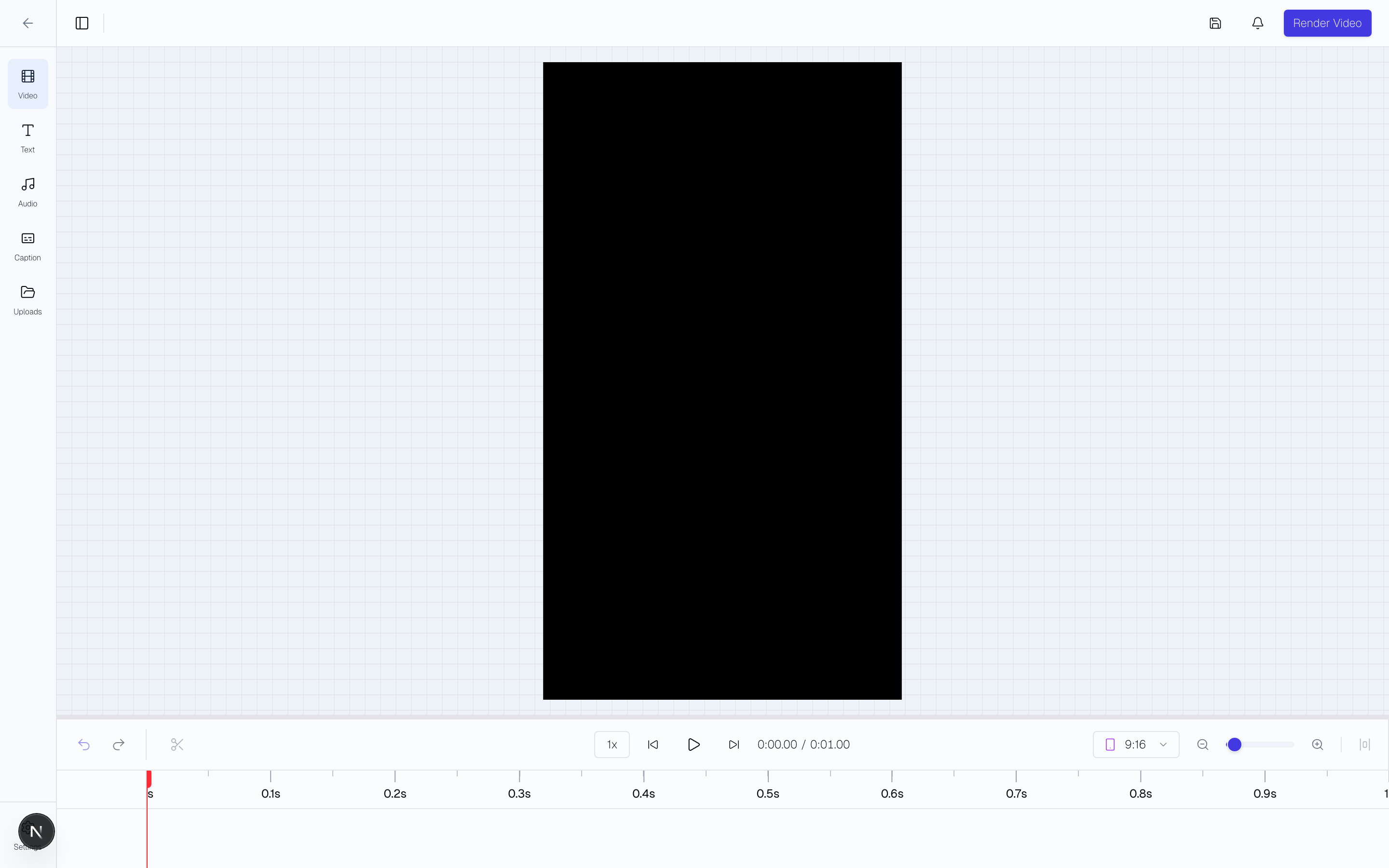
Adding Text
- In the video editor, click the "Text" button in the toolbar.
- A new text element appears on the timeline and in the preview.
- Type your text in the text editing panel.
- Drag the text element on the timeline to control when it appears and disappears.
Positioning
Drag the text element in the preview panel to position it anywhere on the frame. Use alignment guides that appear automatically to center text or align it to edges.
Styling Options
- Font family — Choose from available fonts.
- Font size and weight — Adjust size and boldness.
- Color — Set text color and optional stroke/outline.
- Background — Add a colored background behind the text.
- Animation — Apply entrance and exit animations (fade, slide, etc.).
Apply a built-in style
Select an existing text overlay. Open Built-in styles and apply a style. The words, timing, and position stay the same.
You can also choose Text style before Creative Copilot creates Video variations or Audience variations. A starter style keeps its motion. Choose a saved workspace style, or select New style… to save one for future drafts and the editor. Animated emphasis supplies the style while it is on. See Creative Copilot.
Animated Emphasis
Voiceover Remixes and Auto-arrange can add animated text for key spoken phrases. Turn on Animated emphasis before you create drafts. Each run can add up to three graphics.
Select a generated graphic in the editor to change its phrases, style, and emphasis color. Use Follow speech to keep the graphic linked to the source speech when you move, trim, or change the speed of a clip.
Turn off Follow speech to set each phrase's Reveal after (seconds) value. You can then move the graphic independently. Adjust the hold time to control how long it stays visible after the speech or phrases. A later manual reveal extends the graphic when needed.
If an edit removes the linked speech, the graphic is hidden and needs review. Restore the speech or use manual timing to show it. Use Convert to plain text to remove its motion settings.
The Style picker provides starter designs. You can also change the font, text scale, colors, background, and outline. Saved text styles include the emphasis color.
Replace a Saved Text Style
Saved styles are labeled Project or Workspace. Project styles appear only in that project. Workspace styles appear in every project in the workspace. Styles saved manually in the editor use workspace scope.
If you save a text style with an existing workspace name, Sovran asks you to confirm. Select Replace style to save the current appearance under that name. Select Cancel to keep the saved style. A project style can use the same name as a workspace style.
Saved Text Overlays
Save any text overlay for quick reuse. Click the save icon on a text element to add it to your saved overlays. Saved overlays are cached locally and appear in the "Saved" tab of the text panel, so you can drop them onto any timeline in one click.
Text Overlay Variants in Sequences
When building modular sequences, you can add text overlay variants that change across permutations. For example, different headline copy on each variation — multiplying your test matrix even further. Configure this in the sequence settings under "Text Overlays."