Uploading Video Assets
Upload video files to your project for use in creative testing.
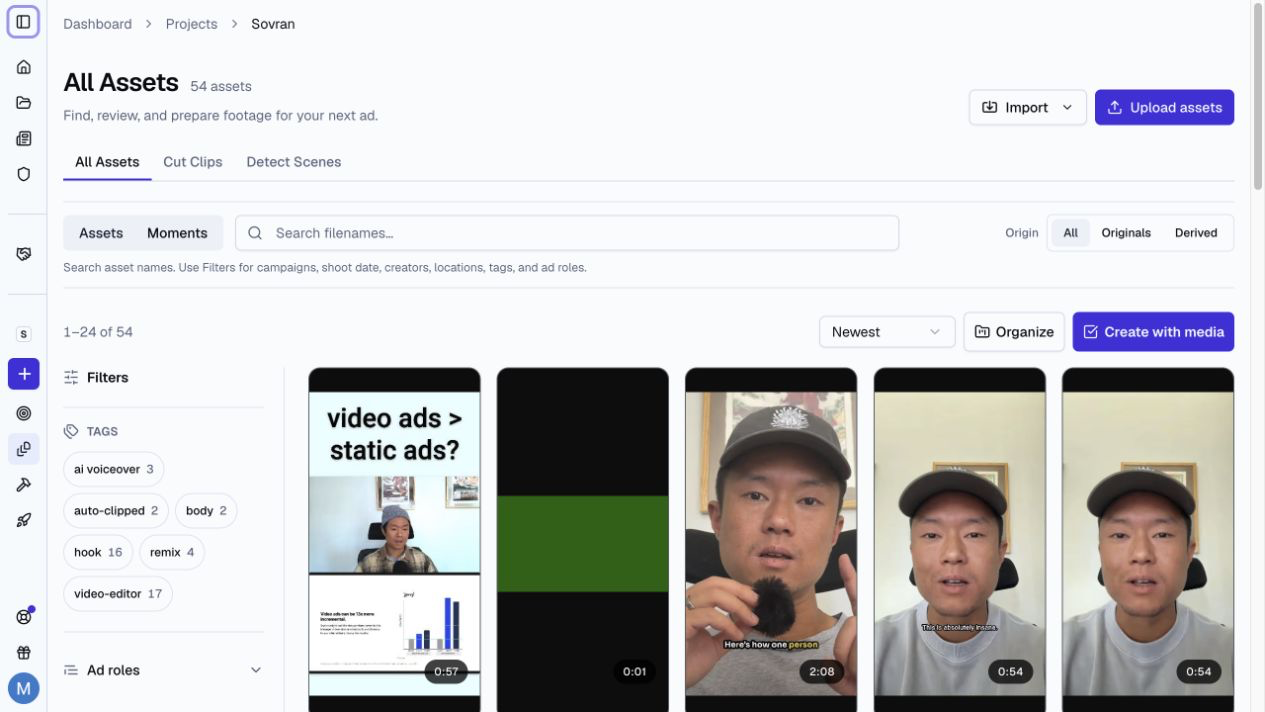
How to Upload
Navigate to the Assets section of your project. You can upload files in two ways:
- Drag and drop — Drag video files directly into the assets area from your file browser.
- File picker — Click the "Upload" button and select files from your computer.
You can upload multiple files at once. Each file is transcoded in the background so you can continue working while uploads process.
Each video can be up to 1 GB. This limit also applies to Google Drive and Dropbox video imports. Audio and image files can be up to 500 MB.
Keep working during a transfer
Select Minimize to move between dashboard pages while files upload. The background card shows the project, progress, and saved file count. Select View details to return to the upload, or Cancel upload to stop it.
Keep the browser open for local uploads. A reload or closed browser can interrupt files that are still uploading. If saving fails, open the upload details and try again. The retry reuses files that already uploaded.
Google Drive and Dropbox imports continue on the server after their files are accepted. Close or minimize the import dialog to keep working. Progress remains linked to the original project. If status updates stop, select Refresh progress before you submit the same files again.
Import from Dropbox
Use the Dropbox import dialog to select videos, audio, or images. Review the selected files before you start the import. Supported image formats are JPG, JPEG, PNG, WebP, and GIF.
Large selections are sent in groups of 50 files. If a request fails, the dialog shows how many files were accepted and keeps the remaining files selected. Check import progress before you retry after a connection error.
After files are accepted, you can close the dialog and follow their progress in the background import indicator.
Find imported images in Video Editor → Photos → Project.
What Happens After Upload
When you upload a video, Sovran automatically:
- Transcodes the video for optimal playback in the browser.
- Generates a thumbnail for the asset library view.
- Extracts audio and transcripts (if the video has speech) for AI search and auto-tagging.
Processing usually takes 1-3 minutes depending on file size. You'll see a progress indicator on each asset.
File preparation and AI analysis status are separate. A video can be ready to use while AI analysis is unavailable. A Not analyzed label does not mean that file preparation is still running.
If the analysis service cannot read a prepared video, re-exporting the source as an H.264 MP4 may help. If its resolution is too low, upload a higher-resolution copy for AI video analysis. A saved transcript does not prove that visual analysis is complete.
Tips for Best Results
- Upload short, modular clips (3-15 seconds) rather than full-length videos. This makes them easier to combine in sequences.
- Use descriptive file names (e.g., "hook-unboxing-v2.mp4") to make searching easier.
- Upload in the highest quality available. Sovran handles optimization for different placements.
Custom spelling
Add brand names and product terms to the Transcription Dictionary before uploading. New transcripts and automatic captions use your workspace rules.