Brief
Ground AI generation in approved product facts, proof, winning creative, and guardrails.
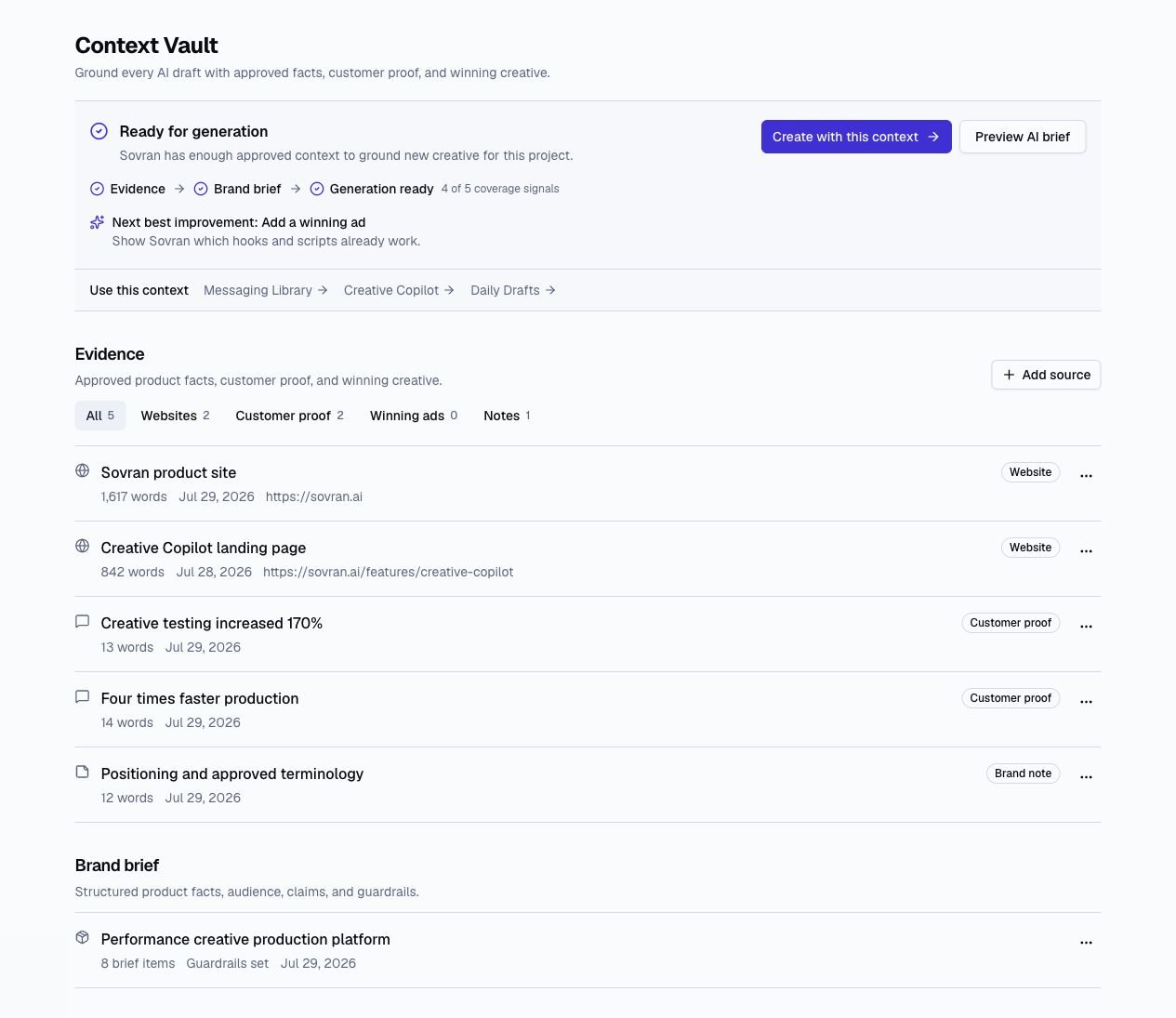
What Is Brief?
Brief stores the approved evidence and structured brand brief that Sovran uses when generating scripts, voiceovers, and creative. Open Brief under Plan and research in the sidebar. Outside a project, choose a project when prompted.
What to Add
Start with the material your team already trusts:
- Websites — Import product pages, landing pages, and campaign pages. You can add more than one.
- Customer proof — Keep reviews, quotes, and outcomes as individual sources so they remain easy to review.
- Winning ads — Add proven hooks and scripts so new creative starts from what already works.
- Brand notes — Store positioning, approved terminology, and other project-specific guidance.
Import a website
Enter a website address, such as example.com. Sovran starts the import automatically after you stop typing. You can also select Import page.
Wait for the import to finish. Check the source name and open Review imported text to check or edit the extracted text. Select Add imported website to save it to project context.
When you edit an existing website source, use Refresh website to fetch the page again. Review the text, then select Save website source.
Edits to imported text are used in future briefs and scripts. Changing a website URL also updates its import identity. If another source already uses that URL, edit that source instead.
Use website styles to keep captions and headlines consistent in new edits. Saving a style does not apply it to a video automatically.
Create brand styles
Website import also detects colors and font names. After saving, the brand brief appears below the website. Select Create brand brief if no brief exists. Progress appears only while work is running or needs attention. Open Website styles to review caption and headline presets from that website. Use Imported website to switch between saved websites. Open Source details to inspect or edit imported text.
Switch between Caption and Headline for readable detail previews. The preview stays visible during mobile edits. Select a font, a named weight such as Bold (700), and an accent color. An automatic font replacement is explained before you choose a font yourself. Use Light and Dark to check readability. A check mark identifies each selected option.
New caption and headline styles use rounded backgrounds in the brand accent color. Text adjusts for readable contrast. These defaults have no text shadow or bounce animation. Select Play preview to check caption timing. Use Pause preview to stop or Replay to start again. Font changes keep keyboard focus in the form.
Select Save project styles to add both styles to the current project. Both saved previews remain under Website styles. This section starts closed to keep the brief in focus. Closing it stops playback and keeps unsaved edits. Select Edit caption style or Edit headline style, make changes, then select Save style changes. Cancel changes restores the saved preview. Only the chosen style changes. Existing videos do not change. You can apply these styles under Saved styles in the video editor.
If the import has no usable colors or fonts, the website text remains available. Edit the website source and select Refresh website to try again. A save retry does not replace existing brand styles. Styles created separately in the video editor or Voiceover Remix are not listed here.
Create the Brand Brief
The Brand brief structures product facts, audience, offer, claims, voice, and guardrails. Website import and brief progress appear separately. If no brief or running job exists, select Create brand brief or Write brief manually. Review the result beside its website. A failed brief offers a retry. A failed progress check offers Check progress. Source text can support scripts while optional brief work continues.
Project context
Website import is the main starting action. Once source text is available, you can create hooks and scripts. The brief and style progress remain separate.
Additional context starts closed. Open it to review saved customer proof, winning ads, and notes, or add another source. Closing this section does not remove sources from AI context. Keep guardrails in the brand brief. The page does not show a quality checklist or missing-source prompts.
Website evidence that has not been refreshed in 90 days, or has no refresh date, is flagged with a Refresh website evidence action.
Connecting Meta is optional. Performance signals can enrich suggestions, but they do not affect whether Brief is ready.
Personas & Messaging Angles
Personas, messaging angles, saved overlays, and scripts live in Messaging. Brief supplies the approved facts and evidence. Messaging uses them to create reusable messages.
Generating Content from Context
When Brief is ready, open Messaging under Plan and research or Auto Edit under Build ads. Sovran uses the project's evidence and brand brief for each workflow. Very long sources may be trimmed to fit a specific generation request.