Building a Sequence
Step-by-step guide to creating a sequence and assigning assets to blocks.
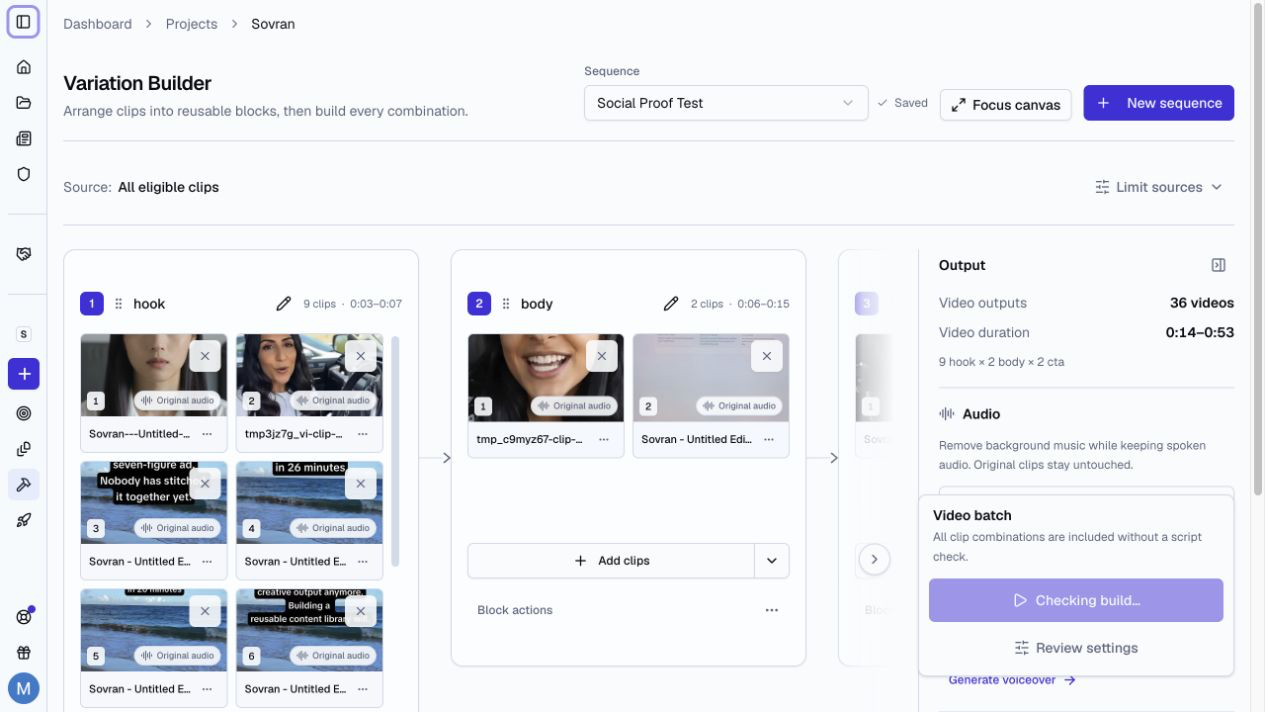
Step 1: Create a New Sequence
- Open Modular Builder in your project and choose Arrange clips.
- Click "New Sequence".
- Give your sequence a descriptive name (e.g., "Q1 Hook Test" or "Summer Sale Variants").
Modular Builder opens the mode used last in this project. Select Arrange clips if it opens Auto-arrange.
Step 2: Define Your Blocks
Add blocks to define your ad structure. Each block represents a section of the final video.
- Click "Add Block" to add a new block.
- Name the block, such as "Hook", "Body", or "CTA".
- Drag the block to change its position.
If the blocks do not fit on screen, use Previous and Next above them. Next also lets you reach Add block. You can scroll the block row. When a block card has focus, use the left or right arrow key to move between cards.
Step 3: Assign Assets
For each block, assign the video clips you want to test:
- Click a block to expand it.
- Click "Add clips" to browse your project assets.
- Select the clips you want to assign to this block.
- Repeat for each block.
The total number of combinations updates as you add clips.
Auto-add clips
Turn on Auto-add clips to add exported Hook, Body, and CTA clips from Cut Clips to matching blocks. Updates run while the builder is open. Source filters apply to new additions.
Clips already in blocks stay selected when filters change or you turn auto-add off. Clips you remove stay excluded. Batches under review stay unchanged.
Step 4: Configure Output
Select Sound to show or hide clip audio, voiceover, and music controls. On a narrow screen, these controls appear below the blocks. On a wide screen, they appear beside the blocks.
Use the Output panel to configure the batch:
- Add voiceovers or music when needed.
- Remove background music while you keep spoken audio.
- Add captions and select a caption style.
- Set the aspect ratio and file naming rules.
Step 5: Render
Select Review settings before you build. Choose All for every possible combination, or choose Smart Combo Mode to check script flow.
Review the batch and start the build. Rendering continues if you close the browser. See Rendering Ad Variations.