AI Semantic Clipping
AI analyzes long-form videos and suggests clip-worthy scenes for extraction.
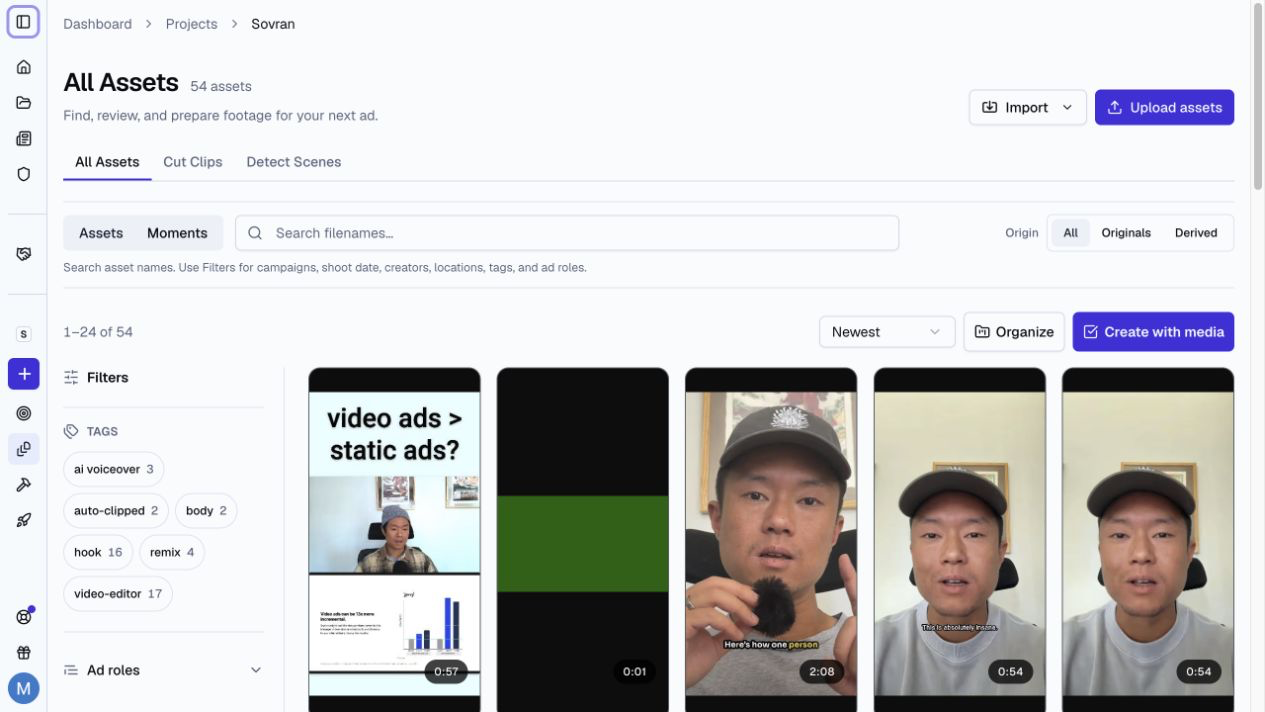
Overview
Sovran can analyze long-form videos such as testimonials, podcasts, and product demos. It identifies segments that can work as standalone clips. Each candidate has a confidence score for review.
Running Analysis
- Open an original video in Assets.
- Go to the Clips tab.
- Click "Analyze Now" to start the analysis.
The AI runs both transcript-based and visual analysis. Results appear automatically when processing completes.
Assets must be at least 4 seconds long to run analysis.
Script and Visual Candidates
The system generates two types of candidates:
- Script candidates come from transcript analysis. Sovran identifies roles such as Hook, Problem, Solution, Benefit, Results, Social Proof, and CTA.
- Visual candidates come from visual analysis. They can include product close-ups, scene changes, or on-screen text.
Videos that had scene detection run earlier also keep their scene cuts. Each cut is one continuous shot.
Each candidate displays its timestamp range, label, description, and confidence score (0–100%). Groups are collapsible so you can focus on one category at a time.
Reviewing Candidates
- Approve marks a candidate as ready for export.
- Reject hides a candidate from the main view. You can show and restore rejected candidates.
- Approve All approves all pending candidates.
The info bar shows counts for total, approved, exported, and rejected candidates.
Previewing Clips
Click any clip candidate's thumbnail to open a looping preview of just that segment. The preview plays the exact time range on repeat so you can quickly evaluate the clip without scrubbing through the full video.
Trimming Before Export
Click "Trim" on any candidate to fine-tune the start and end points before exporting. The trimmer modal lets you adjust the boundaries while previewing the clip.
You can also toggle "Include audio" on or off for all exports.
Exporting Clips
- Single export: Click "Export" on an approved candidate.
- Bulk export: Click "Export All Approved" to export every approved candidate.
Exported clips appear as new derived assets under Assets. Status badges show when a clip is queued, rendering, or ready.
Once a clip is ready, click "Open clip" to preview or use it in your sequences and video editor.
Remixing Clips
Select 2–4 approved or exported clips and click "Remix Clips" to generate every possible ordering as rendered videos. This is a fast way to A/B test different story structures from the same set of clips.
Build in Editor
Select approved clips and click "Build in Editor" to send them directly to the Video Editor. Each clip lands on the timeline pre-trimmed to its exact time range, ready for captions, music, and text overlays.
Original vs. Derived Assets
Analysis, clipping, and trimming are available on original assets. Derived assets include clips, remixes, Creative Copilot drafts, and editor exports.