Understanding the Dashboard
Navigate the Sovran dashboard and understand the key areas of the platform.
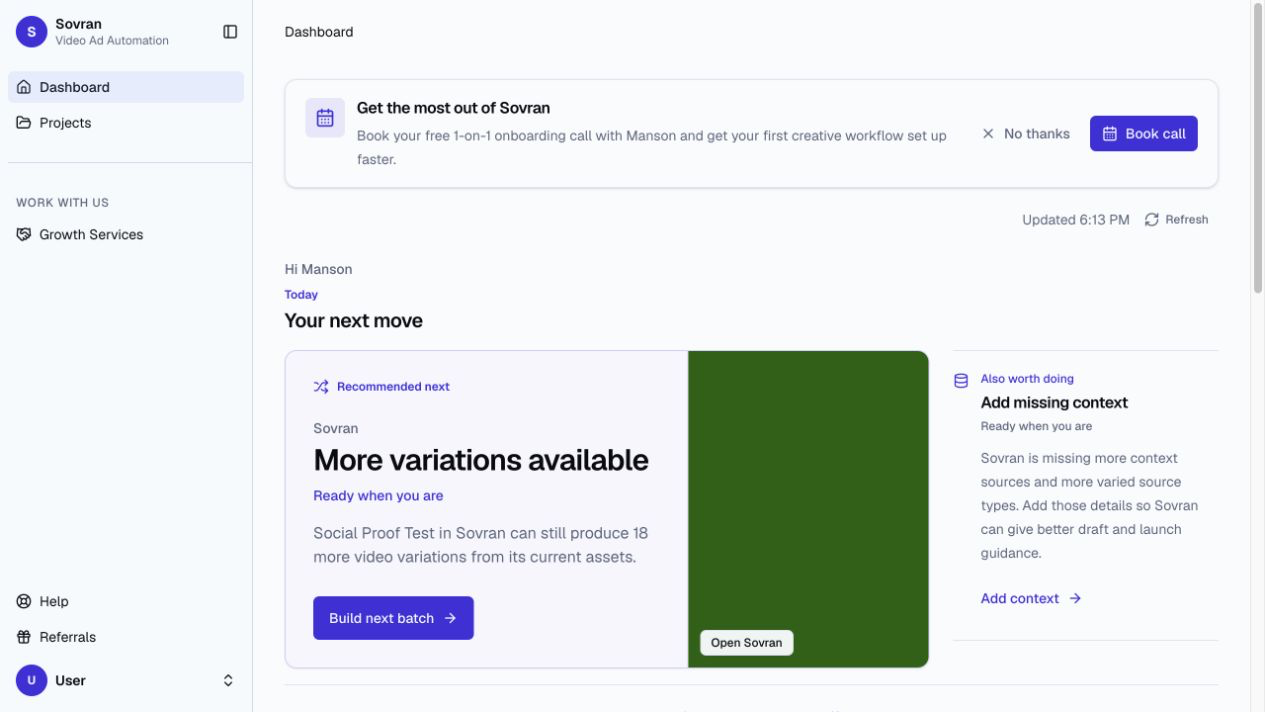
Dashboard Overview
The dashboard opens on Your next move. It shows the recommended task, with the creative it applies to, and up to one more suggestion. Select Hide for 2 weeks to skip a suggestion that does not apply. Start something new opens a workflow in your most recent project.
Recent renders lists running, failed, and finished renders from every project. It also shows your render credit balance and the last 30 days of output. Select a failed render to open the page where you can try again. Workspace totals and storage are on the Account page.
Open a project to manage its brief, source footage, video variations, and finished videos.
Navigation
The sidebar shows four tool groups throughout the dashboard. Groups start open. Select a group name to hide or show its tools. Indented links and a vertical line show which tools belong to each group. Scroll to see all available tools.
| Group | Tools |
|---|---|
| Plan and research | Brief, Messaging, Competitors |
| Prepare media | All Assets, Cut Clips, AI footage, Voiceover |
| Build ads | Modular Builder, Creative Copilot, Remixes |
| Review | Finished Videos, Ad Insights |
Some tools require an available integration or workspace access. Dashboard and Projects stay above the tool groups.
When the sidebar shows icons only, tools stay visible. Hover over or focus a tool to read its name and task. Starting a tour opens the tool groups again.
Inside a project, select a tool to use that project. Outside a project, select a tool, then choose a project. Sovran does not choose one for you. If there are no projects, select Create a project. After you create it, the selected task opens.
Brief stores approved product facts, proof, and brand rules. Messaging stores audiences, message angles, hooks, and scripts. All Assets stores original and derived media. Modular Builder opens your sequences in Arrange clips and generated drafts in Auto-arrange. Finished Videos shows completed renders and publishing status.
Modular Builder replaces the Variation Builder name. Remixes combines With voiceover and No voiceover. Each project remembers the last mode used in either tool. Voiceover opens Add a voiceover in Remixes. Cut Clips replaces the separate Detect Scenes page.
Workspace Tools
The Tools group has three pages:
| Page | Use |
|---|---|
| API Playground | Manage API keys and webhooks. Check host availability and try a first request. |
| MCP Server | Connect an AI assistant and manage its approved workspace connections. |
| Install CLI + Skill | Copy terminal setup commands and install the included Sovran agent skill. |
These tools use your workspace access. API setup, CLI setup, and MCP setup explain the permissions and plan requirements.
Quick Actions
Select Create above the tool groups to start a workflow. It is available throughout the dashboard. You can edit one video, cut clips, build video variations, create variations from one video, remix B-roll, write hooks, draft a script, generate AI footage, or generate a voiceover.
Create actions use the open project. Outside a project, choose a project after you select the action.
Select a finished video or an asset to open its available actions. These actions can include editing, downloading, organizing, and publishing.
Transfers and task progress
Use Minimize during an upload to continue on other dashboard pages. The transfer stays linked to its original project. Use View details to return to it. Keep the browser open for local uploads. Accepted Google Drive and Dropbox imports continue on the server. See upload and import progress.
Dashboard preferences, including Hide for 2 weeks and dismissed setup banners, are saved for your account across browsers and devices.
Search
Use Search, Command K on Mac, or Control K on Windows to find pages, projects, and actions. Search is unavailable inside the video editor.
Enter a name to filter the results. Use the arrow keys to select a result. Press Enter to open it. Press Esc to close Search. If a task needs a project and none is open, select the project when prompted.