LinkedIn Video Ads Specs: Complete Guide 2026
Jump to a section
- Why LinkedIn Video Ad Specs Matter in 2026
- The Ultimate LinkedIn Video Ad Specs Cheat Sheet
- Core Technical Specs A Deeper Dive
- Aspect Ratios and Resolutions by Ad Placement
- Creative Requirements Beyond File Type
- Troubleshooting Common Upload Errors
- Quick Export Presets for Video Editors
- Automate Spec Compliance and Scale Production with Sovran
You've got a video ready, approvals are done, launch pressure is building, and LinkedIn rejects the file or renders it in a way that makes the creative look sloppy. That's a bad place to discover you exported the wrong aspect ratio, used the wrong codec, or forgot that the feed often plays without sound.
Most LinkedIn video ad failures aren't strategy failures. They're packaging failures. The media buyer has one version, the editor has another, the designer framed text too close to the edge, and nobody checked the final export against placement requirements before upload.
That's why a good LinkedIn video specs guide has to do more than list settings. It needs to help you publish cleanly, catch preventable mistakes, and turn one master edit into usable delivery versions without wasting production time.
Why LinkedIn Video Ad Specs Matter in 2026
Launch day is the worst time to learn your video was built for the wrong placement. The file uploads, delivery starts, and then the ad shows up with cropped text, soft resolution, awkward framing, or a first frame that makes no sense without sound.

That is why specs matter in 2026. LinkedIn gives advertisers more room to publish across different aspect ratios, durations, and creative formats. More options help distribution, but they also create more ways for production teams to ship a version that is technically accepted and still wrong for the feed.
The cost is rarely limited to a rejected upload. A bad export wastes paid impressions, slows approvals, forces last-minute re-renders, and creates reporting noise because the team ends up judging performance on a creative that was packaged poorly.
The recurring problems are operational:
- Framing breaks by placement: Text that looks fine in a horizontal master can feel cramped or cut off in square or vertical versions.
- Silent playback gets ignored: LinkedIn feed playback often starts muted, so ads without captions, clear supers, or a readable opening frame lose context fast.
- Exports drift across editors: Premiere Pro, Final Cut Pro, and Resolve can all output valid files, but small differences in codec, bitrate, frame rate, and audio settings still cause avoidable upload or quality issues.
I treat spec compliance as part of media execution, not a cleanup step for the editor. If the asset is built and exported correctly, trafficking gets easier, QA gets faster, and performance reviews focus on the message and offer instead of preventable formatting errors.
That is also the practical value of this guide. It is not only a reference list. It is meant to function like a publisher checklist, an export handoff standard, and a troubleshooting shortcut for teams producing multiple versions under deadline. If you manage several channels, keep a broader social media video specs reference across major ad platforms nearby so LinkedIn versions stay aligned with the rest of your production workflow.
The Ultimate LinkedIn Video Ad Specs Cheat Sheet
If you only need the publish-safe settings, use this as the final pre-flight check before render and upload. These are the LinkedIn video ads specs that matter most in day-to-day production.
| Specification | Requirement | Notes |
|---|---|---|
| File format | MP4 | Use MP4 for standard ad delivery |
| Video codec | H.264 | Best fit for LinkedIn ad compatibility |
| Audio codec | AAC or MP3 | AAC is usually the cleaner default in export tools |
| Audio channels | Stereo | Keep output simple and platform-safe |
| Audio sample rate | 44.1 kHz or 48 kHz | Standard export options in most editors |
| Audio bitrate | 128–192 kbps | Good balance between clarity and file control |
| Frame rate | 30 fps or lower | Higher frame rates can create unnecessary issues |
| Maximum file size | 200 MB | Watch this closely on longer edits |
| Supported duration | 3 seconds to 30 minutes | Wide range, but short attention still matters |
| Supported aspect ratios | 16:9, 1:1, 4:5, 9:16 | Build versions by placement, not one-size-fits-all |
| Common landscape resolution | 1920×1080 | Strong default for horizontal feed use |
| Common vertical resolution | 1080×1920 | Use for full vertical delivery |
| Sound behavior in feed | Muted by default | Design for captions and on-screen messaging |
The specs above combine the most practical constraints marketers need at export time. The technical requirements for codec, audio, frame rate, file size, and aspect ratio are reflected in this asset formats and requirements resource.
What this table helps you avoid
Use it to catch the issues that usually derail launches:
- Oversized exports: Long cuts, dense motion graphics, or careless bitrate settings can push the file beyond the limit.
- Unsupported packaging: Editors sometimes export MOV out of habit. For LinkedIn ads, stick with MP4.
- Placement mismatch: A single horizontal master won't always hold up in square or vertical placements.
Keep this table beside the export window. Most upload headaches start there, not inside Campaign Manager.
Core Technical Specs A Deeper Dive
A LinkedIn upload usually fails for boring reasons. The file is packaged wrong, the bitrate is excessive for the runtime, or the editor exported a high-fps master that looked great in review and created problems in delivery.
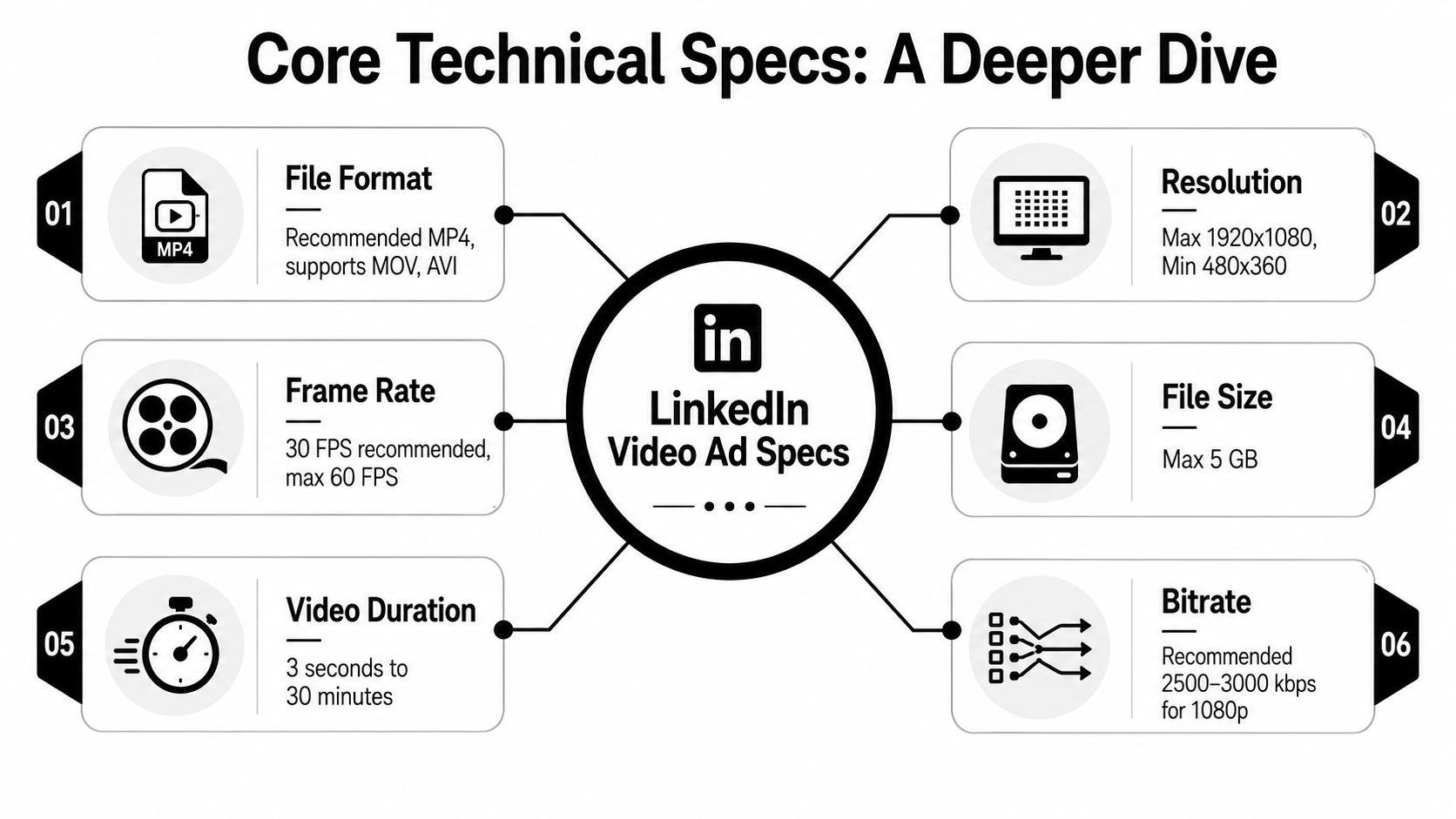
The practical standard is simple. Export LinkedIn video ads as MP4 using H.264 video, with AAC or MP3 audio, stereo sound, and conservative settings that keep playback reliable across desktop and mobile. If your team wants a second reference on how video containers and codecs differ across approval workflows, post-production, and delivery, this comprehensive guide to client video formats is a useful companion.
Why MP4 with H.264 keeps approval and delivery cleaner
MP4 is the file container. H.264 is the video compression inside it. That pairing is widely supported, easy for ad platforms to process, and far less risky than exporting a heavier mezzanine file or an editor-friendly format that was never meant for paid media delivery.
Production teams often lose time due to the nature of export presets. Premiere, Resolve, and Final Cut all offer export presets that are fine for review links or archive masters. Those same presets can create bloated files, odd audio settings, or compatibility issues once the asset hits Campaign Manager.
Use a delivery master, not an editing master.
If you regularly produce one creative concept in several crops, it helps to resize video for ads across placements from a controlled master with the same codec, frame rate, and audio settings. That keeps versioning predictable and reduces last-minute export drift between editors.
File size and frame rate are where good footage gets turned into bad uploads
Higher settings do not automatically produce a better ad. They often produce a bigger file, a slower approval cycle, and more room for upload errors.
The failure pattern is familiar. A B2B marketing team approves a long testimonial cut, exports at the source frame rate, leaves bitrate too high, and ends up with a file that is harder to process than the ad unit needs. The fix is usually not re-editing. It is tightening export discipline.
Use this working rule:
| Setting | What it controls | Common failure point |
|---|---|---|
| Bitrate | Image detail and file weight | Set too high for the ad length |
| Frame rate | Motion rendering and playback compatibility | Export left at a high native capture rate |
| Duration | Message depth and total file size | Long cuts exported with no compression restraint |
For paid social, clean compression wins. If the source footage is weak, pushing quality settings harder will not rescue it. It only creates a larger asset.
Audio settings matter less for approval than for perceived quality
Audio rarely causes the first round of troubleshooting, but weak audio still hurts performance. Voiceover should be clear, music should sit under speech, and silence at the start should be intentional.
Stereo is fine if that is your edit default. Standard sample rates and moderate audio bitrate keep the file stable without adding unnecessary weight. In feed, many viewers will see the ad before they hear it, so audio quality needs to support captions and on-screen text rather than carry the whole message.
Aspect ratio affects production workflow, not just composition
The supported shapes are already covered above. The operational point is what matters here. One approved script does not mean one exported file.
Strong teams build a repeatable publishing workflow. They keep a clean master sequence, protect text safe zones, export each placement version with the same technical package, and check the final file before upload. That publisher mindset prevents the common mistakes that show up later as cropped logos, inconsistent motion, or one version failing while another version passes.
Treat specs as a preflight checklist, not reference trivia. That is how you keep creative moving without turning every upload into a QA exercise.
Aspect Ratios and Resolutions by Ad Placement
A common LinkedIn failure starts in the edit bay, not in Ads Manager. The team exports one widescreen master, crops it three ways at the last minute, and only notices the problems after upload. The speaker's eyes sit too high in vertical, the headline gets clipped in square, and the product UI becomes unreadable on mobile.
Choose the placement first. Then frame for that placement.
Feed placements
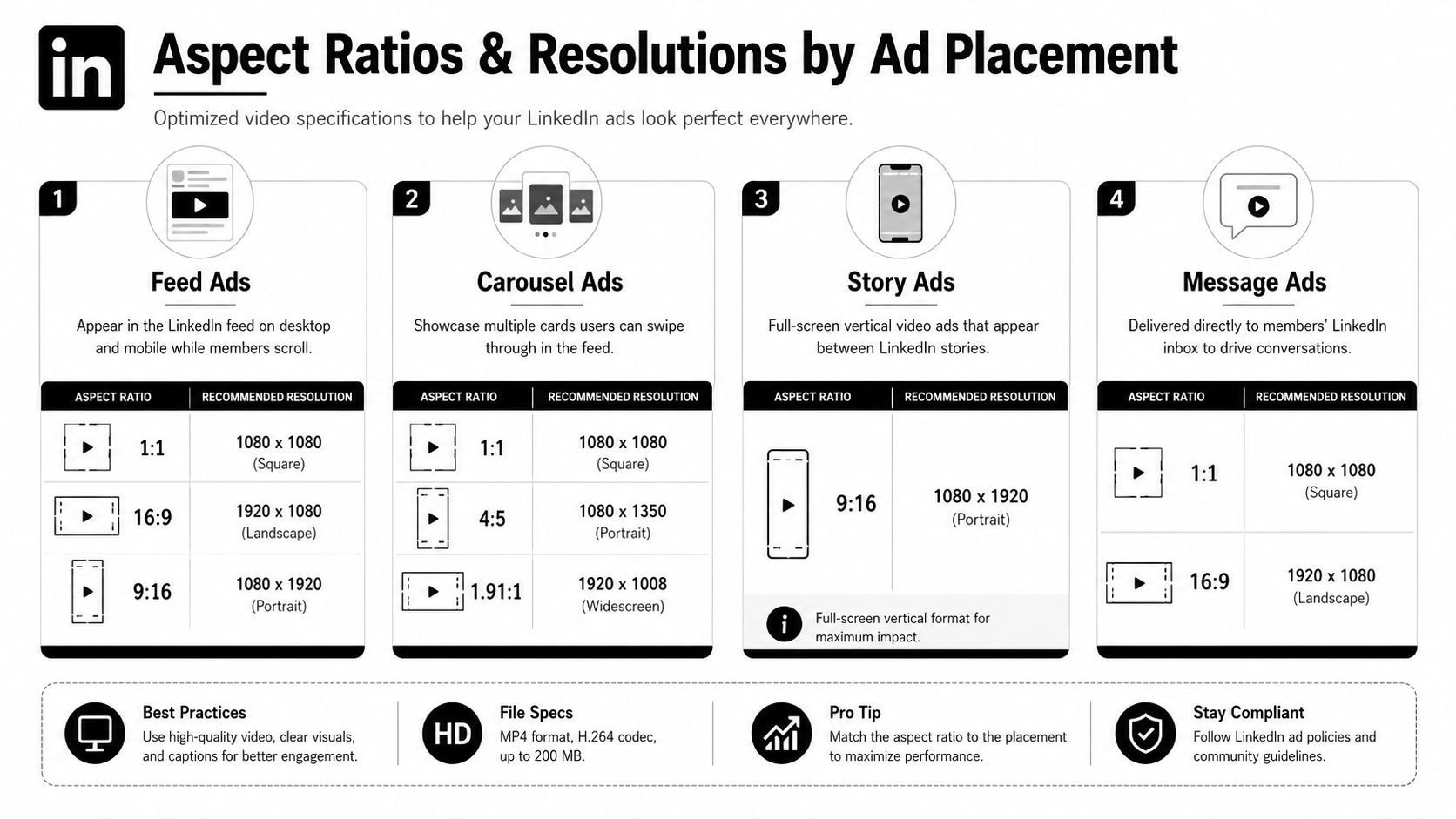
For feed delivery, the practical working set is 16:9, 1:1, and 4:5. All three can work. The right choice depends on what the creative needs to show and how much mobile attention you want to win.
| Placement fit | Best aspect ratio | Typical use case | Creative trade-off |
|---|---|---|---|
| Desktop-leaning feed | 16:9 | Product walkthroughs, interviews, webinars | Natural for horizontal footage, but it usually occupies less screen space on mobile |
| Balanced cross-device feed | 1:1 | General B2B promos, explainers, testimonials | Easier to adapt across channels, but tighter for side-by-side layouts |
| Mobile-forward feed | 4:5 | Hook-first ads, demos, talking-head offers | Stronger feed presence, but text and logos need stricter safe-zone control |
16:9 works best when the source was shot for horizontal viewing and includes details that need width. Product screens, event footage, and two-person interviews usually hold up better here than in taller crops.
1:1 is the safest adaptation format for mixed campaigns. It preserves more of the original composition than 4:5 while still giving you better mobile presence than widescreen.
4:5 usually wins more visual real estate in feed. It also creates more work. Horizontal masters with lower-thirds, screenshots, or edge-aligned branding often need a separate layout pass, not a quick crop.
If you are turning one master into multiple placements, a video resizing workflow for LinkedIn and other ad placements cuts down the usual back-and-forth between creative, editing, and paid social QA.
Vertical placements
9:16 is the right call when the ad was designed for a phone-first viewing experience. Use it for direct-to-camera hooks, simple motion graphics, bold text-led creative, and short message sequences that can carry one idea per scene.
Vertical breaks down fast when the frame is crowded. Dense slides, dashboard views, wide product interfaces, and multi-speaker layouts often become harder to read instead of more engaging.
That trade-off matters in B2B. If the ad depends on showing detail, square or 4:5 usually gives you a better result than forcing a full vertical version.
Resolution choices that stay practical
Use resolutions your team can export consistently without extra debate:
- 1920×1080 for horizontal delivery
- 1080×1080 for square delivery
- 1080×1350 for 4:5 delivery
- 1080×1920 for vertical delivery
These dimensions keep handoffs cleaner across editors, freelancers, and internal teams. They also make QA faster because naming, previews, and placement mapping stay predictable.
A simple file structure helps here. campaign-name_ratio_length_version is boring, but it prevents approval mistakes and duplicate uploads.
How to frame for each shape
The safest way to build LinkedIn video is to protect the center of the frame and simplify anything near the edges.
- Keep faces and product focal points near the center third
- Pull logos, captions, and CTAs away from the outer edges
- Increase text size for 4:5 and 9:16 versions
- Split complex charts, screenshots, or UI demos into tighter scenes
- Check every crop on mobile before export approval
One rule catches a lot of errors early. If a frame only works in one aspect ratio, it is not ready for multi-placement production.
Publisher teams treat aspect ratio selection as a versioning decision, not a resize task. That is how you avoid cropped branding, unreadable screens, and last-minute re-exports on launch day.
Creative Requirements Beyond File Type
A technically compliant file can still underperform if the creative ignores how LinkedIn users consume video. The platform can accept your export and still leave you with an ad that communicates almost nothing on first glance.
Captions aren't optional
Because LinkedIn videos commonly start muted in feed, your ad needs to work without audio from the opening frame. That means captions, but not just as a compliance layer. They're part of the pitch.
Use captions to carry the spoken message, and use on-screen text to reinforce the single point that matters most. Don't duplicate every word in giant blocks. That creates clutter. Keep captions readable, high-contrast, and positioned where they won't fight with lower-third branding or UI overlays.
A strong silent-first setup usually includes:
- An opening visual claim: The first frame should tell viewers what they're looking at.
- Readable subtitles: Clean line breaks beat auto-generated chaos.
- Short text hierarchy: Headline first, supporting phrase second, CTA last.
Thumbnails and opening frames
Many teams obsess over thumbnails on YouTube and ignore them on LinkedIn. That's a mistake. Even when autoplay does some of the work, the opening frame still acts like a thumbnail in motion.
Use a frame that answers one of these questions immediately:
- What is this?
- Who is this for?
- Why should I care?
A blurry product shot, a random B-roll opener, or a logo-only slate usually wastes that moment. The first frame should contain either a person, a product, or a clear claim. Preferably two of those.
Editorial note: If the ad only makes sense after the voiceover starts, the opening is too weak for feed.
Safe zones and feed reality
LinkedIn's interface will sit around your creative, and sometimes over the areas you were counting on for text. That's why safe zones matter even when the platform doesn't reject the file.
Keep your critical elements away from the outer edges:
- Brand marks: Place them inward, not pinned to a corner.
- Offer text: Don't sit it too low where controls and surrounding UI can compete with it.
- Faces and demos: Leave breathing room above and below the focal point.
One practical workflow change helps more than any design tweak. Review every final export at small size before upload. If text feels barely readable on a laptop or phone preview inside your team chat, it won't improve in the live feed.
Troubleshooting Common Upload Errors
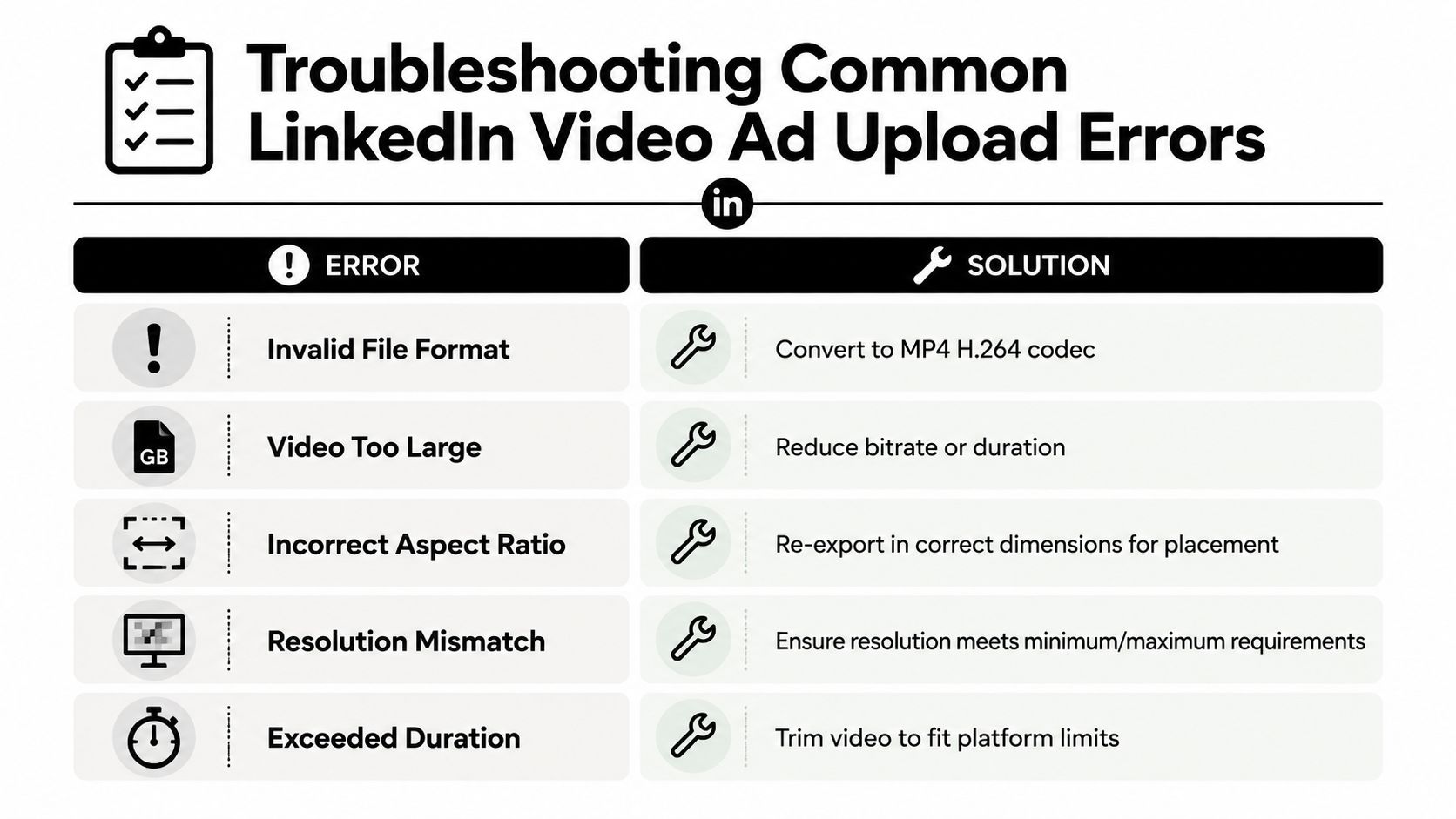
Upload errors are usually mechanical. The faster you isolate the category of failure, the faster you get back to launch.
When LinkedIn rejects the file outright
If you see a message that suggests the media file can't be processed, start with the basics. Don't start re-editing the creative yet.
- Check the container first. The export should be MP4.
- Confirm the video codec. Use H.264.
- Check audio packaging. AAC is usually the most reliable default.
- Re-export from the timeline, not from a transcoded copy of a copy. Generational exports can create odd issues.
A lot of “unprocessable” files are wrapped or encoded incorrectly.
When the file uploads but won't publish cleanly
Some failures show up after upload rather than before. The ad appears soft, stretched, or oddly cropped. In those cases, the problem is usually one of these:
| Symptom | Likely cause | Fastest fix |
|---|---|---|
| Video looks blurry | Weak source or poor export settings | Re-export from the master at proper dimensions |
| Video looks stretched | Wrong sequence or pixel dimensions | Match the timeline to the intended aspect ratio |
| Important text is cut off | Unsafe composition | Reframe and move copy inward |
| Upload stalls or fails late | File too heavy | Reduce bitrate, simplify motion, or shorten the cut |
Common error patterns and fixes
A few specific workflow problems show up often:
- Duration issue: If the video is too short or too long for accepted limits, trim it and export again from the source sequence.
- Aspect ratio mismatch: Don't rely on player scaling. Create a dedicated 1:1, 4:5, 16:9, or 9:16 version.
- Frame rate conflict: If footage was shot at a high native frame rate, conform or export at 30 fps or lower using your final timeline settings.
- Oversized file: Start by lowering export bitrate before cutting audio quality aggressively.
Don't troubleshoot in five directions at once. Change one variable, export once, and test again.
A publisher checklist before every upload
Use this short checklist when the clock is tight:
- File type checked: MP4, not a convenience export from another workflow
- Codec confirmed: H.264 for video
- Audio cleaned up: AAC or MP3, no strange channel mapping
- Frame rate reviewed: Not above the accepted threshold
- Weight controlled: Under the file size cap
- Placement version matched: The uploaded asset fits the destination placement
- Final preview watched: Sound on and sound off
That last step catches more issues than teams expect. You'll spot awkward caption timing, broken end cards, and bad crops before the platform does.
Quick Export Presets for Video Editors
The best preset is the one your team can use without thinking. If every editor exports LinkedIn files differently, you don't have a creative workflow. You have a recurring QA problem.
Adobe Premiere Pro preset
In Premiere Pro, start from an H.264 export, then save a custom preset for LinkedIn feed use.
Use this baseline:
- Format: H.264
- Container output: MP4
- Frame rate: Match timeline, but keep final export at 30 fps or lower
- Audio codec: AAC
- Audio sample rate: 48 kHz or 44.1 kHz
- Audio bitrate: Inside the accepted 128–192 kbps range
- Aspect ratio version: Save separate presets for 16:9, 1:1, 4:5, and 9:16
- File size discipline: Review estimated output size before queueing
Name the presets clearly. “LinkedIn_16x9_Feed”, “LinkedIn_1x1_Feed”, and “LinkedIn_9x16_Vertical” are a lot easier to manage than “social export new”.
Final Cut Pro setup
In Final Cut Pro, the trap is usually the project setup rather than the export panel. Build the project in the target frame shape first. Don't finish a widescreen timeline and try to force a square or vertical export at the very end unless the composition was built to survive that crop.
A clean handoff process looks like this:
- Duplicate the master project.
- Resize the project for the target placement.
- Reposition text, faces, and logos shot by shot.
- Export as MP4 with compatible audio settings.
- Watch the file before upload.
DaVinci Resolve workflow
In DaVinci Resolve, set delivery pages as saved presets per placement. Resolve gives you a lot of control, which is great until someone on the team gets too clever and changes settings nobody else notices.
Keep the preset simple:
| Editor | Must-save preset elements | What to avoid |
|---|---|---|
| Premiere Pro | H.264, audio settings, target dimensions | Reusing unrelated YouTube presets |
| Final Cut Pro | Correct project dimensions plus MP4 export | Cropping only at export stage |
| DaVinci Resolve | Timeline resolution, frame rate, delivery codec | Over-customized delivery templates |
If your team cuts across multiple apps, document the export naming and review process in the same place you keep your video editing workflow for social media. Standardization matters more than software loyalty.
What to lock down across all editors
No matter which app you use, keep these variables fixed:
- Use MP4 with H.264
- Stay under the file size cap
- Export with supported audio packaging
- Create placement-specific versions instead of stretching one master
That's the difference between a repeatable ad ops workflow and a Slack thread full of “can someone re-export this?”
Automate Spec Compliance and Scale Production with Sovran
Manual LinkedIn video production breaks down in the same places every time. Teams waste hours checking file settings, resizing one creative into several placements, and chasing corrections after upload problems show up. None of that work improves the concept. It only fixes packaging.
That bottleneck gets worse when you're running multiple campaigns at once. One product launch needs widescreen demos. Another campaign needs square customer proof. A third needs vertical variants for mobile-first distribution. If every version needs hands-on editor time, throughput slows down fast.
Where automation changes the workflow
The biggest production gains come from removing repetitive resizing, exporting, and compliance checks from the human team. Instead of asking editors to rebuild the same ad for each placement, automation can handle versioning from a single approved source asset.
That matters for three reasons:
- Fewer preventable errors: Codec, dimensions, and formatting don't drift from editor to editor.
- Faster testing cycles: Buyers can launch more variants without waiting on repeated manual exports.
- Cleaner team coordination: Creative, media, and account teams work from the same source instead of scattered handoff files.
A workflow built around automated video ad production is useful when you need to generate multiple placement-ready versions consistently, especially when campaign volume starts outpacing manual QA.
What a scalable production system should handle
If you're evaluating tools for this job, look for a setup that can:
| Workflow need | Why it matters |
|---|---|
| Multi-format adaptation | Lets one master creative become feed-ready variants |
| Consistent export handling | Reduces rejection risk and formatting drift |
| Fast caption and text updates | Keeps silent-first creative easier to maintain |
| Centralized asset organization | Prevents version confusion across campaigns |
The goal isn't to replace creative judgment. It's to remove the mechanical work that drains creative time.
When spec compliance becomes automatic, your team can spend more energy on hooks, messaging, sequencing, and testing. That's where the actual performance upside lives.
If your team is buried in re-exports, format conversions, and placement-by-placement video prep, Sovran gives you a faster way to produce compliant ad variations at scale. Upload a master asset, generate the formats you need, keep creative quality high, and move from manual production to a repeatable testing workflow.

Manson Chen
Founder, Sovran
Related Articles
Storyboard Development: Scale Video Ad Production in 2026

8 Pattern Interrupt Techniques for Video Ads